
Change the prayer times to match your mosque
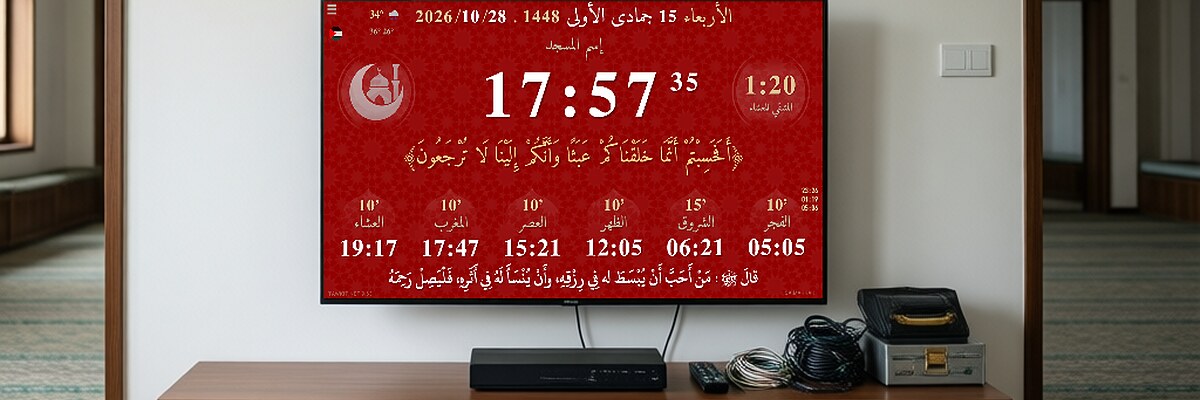
Export the settings, edit the times in the file with Notepad, upload it to settings.tawkit.net to get an ID, then in the mosque app use Import by ID.
If the times of your city are a few minutes different from your mosque's timetable, you can set the exact times yourself. The easiest way is to prepare everything on your home computer, then send it to the mosque screen with an ID.
1. Prepare the settings at home
- On your computer, open offline.tawkit.net in your usual browser.
- Choose your country and city and set all the options for your mosque.
- Open Menu → Import/Export and click Export Settings.
- Save the settings file and open it with Notepad.
- Edit the times of your mosque as they should be, then save the file.
2. Get an ID
- Go to settings.tawkit.net.
- Import your settings file there.
- The website gives you an ID: write it down.
3. Send the settings to the mosque screen
- The mosque device needs an internet connection for this step.
- In the mosque app, open Menu → Import/Export and click Import by ID.
- Enter the ID and confirm with OK.
- The app reloads by itself and shows the corrected times and all your settings.
Without internet at the mosque
Copy the file to the device and use Menu → Import/Export → Import Local File. Some Android devices don't support this: then use the ID method.
Only a fixed shift?
For summer time (DST), use Menu → Adjust adhan and iqama times: see summer time and Ramadan.
The same ID can update other mosques too, so one person can prepare the settings for several screens.
Didn't find your answer?
Ask the Tawkit AI assistant in your language. Ask your full question at once, with all the details.