
Help center: guides for Tawkit
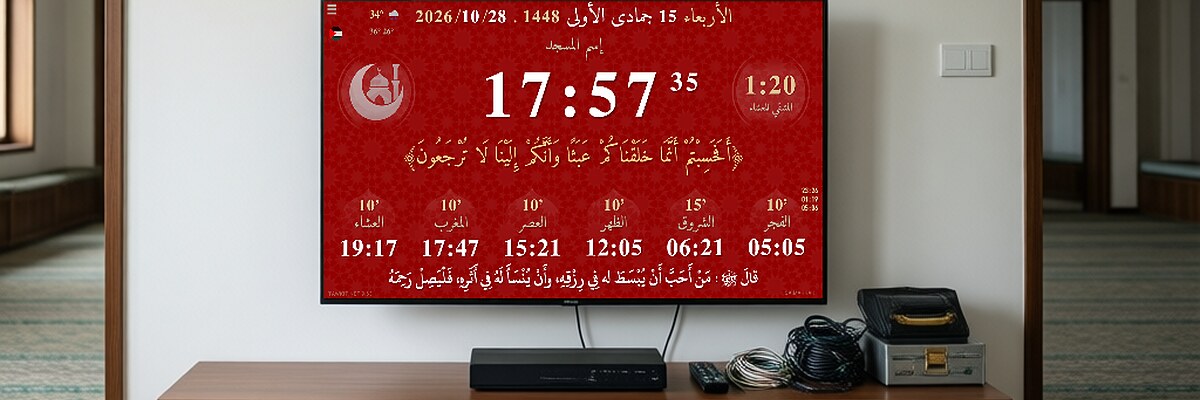
Short guides for beginners: choose a device, install the app, set the prayer and iqama times, customize the screen and fix common problems.
Frequently asked questions Ask Tawkit AI
Choose
- Which device to choose for a mosque screen Any TV with HDMI plus an Android TV box (Android 9 to 13, 2 GB RAM, with a real-time clock). A smart TV with Android needs no box.
- Use an old phone or tablet as a prayer times screen at home Install the Tawkit APK on an unused Android phone or tablet, or open offline.tawkit.net on any phone, put it on a stand and keep it charging.
- The 4 versions of Tawkit: which one to use Android APK for TV boxes and phones, ZIP/HTML for computers and Raspberry Pi, the web version at offline.tawkit.net with nothing to install, and the old online version with an account.
- Does Tawkit need the internet? No, not day to day: the prayer times are inside the app. Internet is only needed for short tasks: the weather, importing settings and correcting the clock.
Install
- Web version: use Tawkit with nothing to install Open offline.tawkit.net in any browser, on any device. Internet is needed only the first time; then the app keeps working offline.
- Which APK file to download Android 5 to 14: the main APK. Android 15 and 16: the ARM64 APK. If the app doesn't open on your device, try the old version 9.61.
- Install Tawkit on an Android TV box or smart TV Download the APK, copy it to the box with a USB stick (or download it on the box), open it with the file manager, allow the install, then choose your city.
- Install Tawkit on an Android phone or tablet Download the APK on the phone, tap it in Downloads, allow the install, then open Tawkit from the app list and choose your city.
- Make Tawkit start by itself when the device turns on Set the TV box to open Tawkit at start-up (in its settings or launcher). Android 9 to 13 boxes work best; Amazon Fire TV doesn't allow it.
- Update Tawkit without losing your settings Export your settings first (Menu → Import/Export), uninstall the old version, install the new one, then import your settings back.
- Install Tawkit on Windows, Mac or Linux Download the ZIP, unzip it in a new folder (for example c:/tawkit/), open index.html in the browser, then press F11 for full screen.
- Tawkit on a smart TV, iPhone or iPad Android smart TV: install the APK directly. iPhone, iPad and other smart TVs: open offline.tawkit.net in the browser.
- Install Tawkit on a Raspberry Pi Unzip the ZIP version on the Raspberry Pi, open index.html with Chromium in full screen, and set Chromium to open it at start-up.
- Know when a new version of Tawkit is out The author announces new versions and important updates by newsletter: subscribe to it. The latest version is shown on the download page.
Set up prayer times
- Choose your country and city Open the menu, choose your country, then your city. Tawkit has ready prayer times for most cities in the world.
- Change the prayer times to match your mosque Export the settings, edit the times in the file with Notepad, upload it to settings.tawkit.net to get an ID, then in the mosque app use Import by ID.
- Set the iqama times Set how many minutes after each adhan the iqama comes, or fix an iqama time. The screen shows a countdown to the iqama.
- My city is not in the list Choose any nearby city, export the settings, write your city's times in the file, upload it to settings.tawkit.net and use Import by ID. You can also ask the author to add your city.
- The clock is wrong after a power cut The device has no real-time clock (RTC). Turn on Wi-Fi briefly so the device corrects its time, open Tawkit, then turn Wi-Fi off. For the future, choose a box with an RTC.
- Where the prayer times come from Tawkit uses ready yearly prayer-time files for each city, not a live calculation. To use other times, import your own times with a settings file.
- Summer time (DST) and Ramadan To shift the times for summer time, open Menu → Adjust adhan and iqama times. In Ramadan, adjust the iqama times the same way, or import your mosque's timetable.
- Adjust the Hijri date Tap the Hijri date on the screen to move it by one day. At the start of a new Hijri year or month, wait about two days if it can't be adjusted yet.
Customize
- Mosque name, announcements and slides Change the mosque name in Menu → Options. Add your own messages and slides (text or images) shown between prayers.
- Custom sound alerts and timed messages Write alerts like 15.BEFORE.FAJR.(Salam Alaykoum): minutes, BEFORE or AFTER, a prayer keyword, and a message. The message shows for 12 seconds with a short sound.
- Change the language of the app Open Menu ☰ and choose the language code (EN, AR, FR, UR, HI, TR, ID, BN...). The app restarts by itself. The Qur'an verses can use another language (Menu → Options).
- Your own background and adhkar images Menu ☰ → Personal Files → enable → upload a .jpg or .png image (max 1 MB): one for the background, one for the adhkar screen after prayers.
- Back up your settings and copy them to other screens Menu → Import/Export → Export Settings. Upload the file to settings.tawkit.net to get an ID, then on any screen: Import by ID. Without internet: Import Local File.
- Change fonts, adhan audio and language files Use the ZIP/HTML version: replace the files in its folders, such as /audio/ for the adhan or /languages/ for texts. Fonts can also be chosen in Menu → Options.
Fix a problem
- No adhan sound Check the TV or device volume and that it isn't muted, that the adhan sound is on in the settings, and that the box sends sound through HDMI.
- Tawkit icon missing on the TV box home screen Some TV launchers don't show apps installed from an APK. Open Tawkit from Settings → Apps, or create a shortcut with ATV Launcher (package net.tawkit).
- Start again with clean settings Android: Settings → Apps → Tawkit → Storage → Clear data. ZIP or web version: clear the browser's site data. Export your settings first if you want to keep them.
Rules
- Is Tawkit free? Terms of use Yes. Tawkit is free, with no ads. It is not open source and may not be sold. You may edit it for your own use, but not share edited versions or remove the name or author.
- Selling devices with Tawkit installed Allowed, with a profit of at most 50% of the device and accessories, if you tell the buyer the app is free, give free support and keep the app name.
Volunteers
- Become a volunteer installer Contact the author with your name, city, country and WhatsApp number. You will be listed so people in your area can ask you for help.
- About Tawkit and its author Tawkit was created by Ismail Chagdali in 2013 for home use; since 2016 it has been used in mosques worldwide. It is developed in his free time, for free.
No guide found. Ask the AI assistant instead.
Didn't find your answer?
Ask the Tawkit AI assistant in your language. Ask your full question at once, with all the details.