
Back up your settings and copy them to other screens
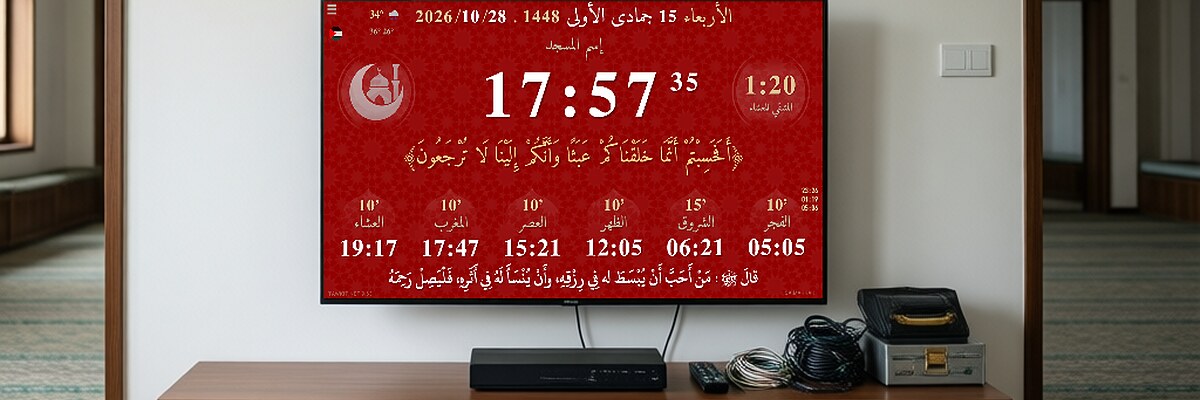
Menu → Import/Export → Export Settings. Upload the file to settings.tawkit.net to get an ID, then on any screen: Import by ID. Without internet: Import Local File.
Export your settings to keep a backup, to update the app without losing anything, or to set up several screens the same way.
Export
Open Menu → Import/Export and click Export Settings. Save the file.
Import, method 1: by ID (easiest)
- Upload your file to settings.tawkit.net: you get an ID.
- On the screen to set up (with internet): Menu → Import/Export → Import by ID.
- Enter the ID and confirm. The app restarts by itself with the settings.
This method also lets you update other mosques remotely: send them the ID.
Import, method 2: local file (no internet)
Menu → Import/Export → Import Local File, then choose the file. The app restarts by itself. Some Android devices don't support this: then use method 1.
Edit before importing
The file can be opened with Notepad to change the prayer times or messages: see change the prayer times.
Didn't find your answer?
Ask the Tawkit AI assistant in your language. Ask your full question at once, with all the details.